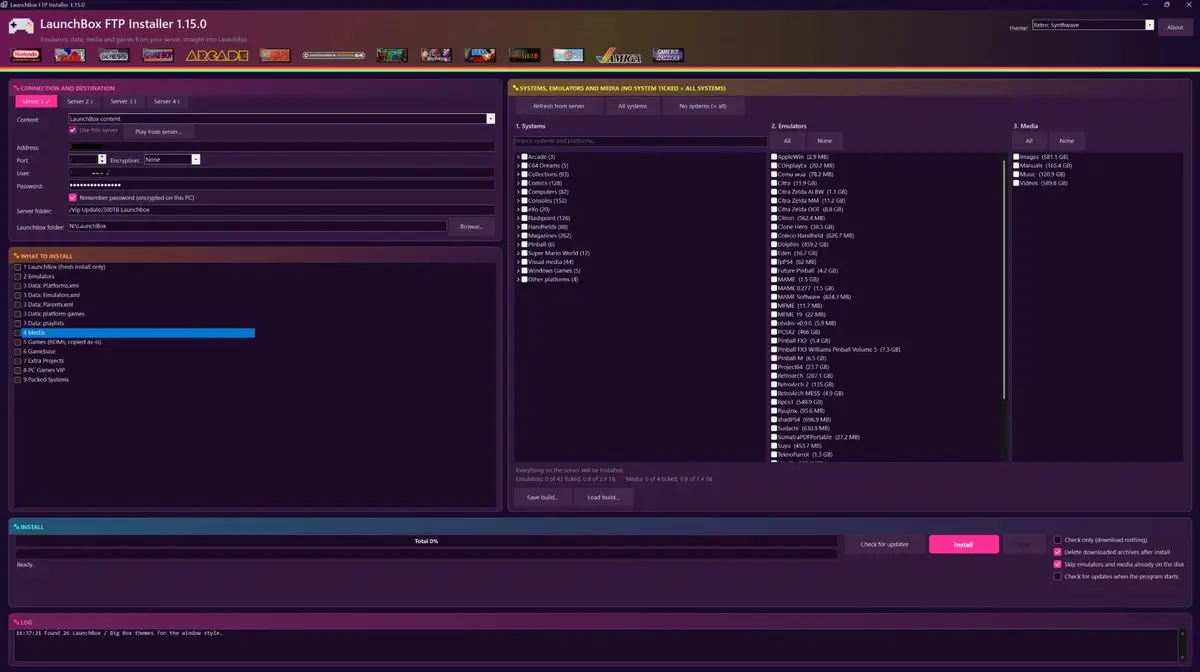
Beta · work in progress. A new add-on for every subscriber: one program that installs your whole LaunchBox build from our servers. No manual downloads, no unpacking, no config files. Pick your systems, click Install, play.
What it does
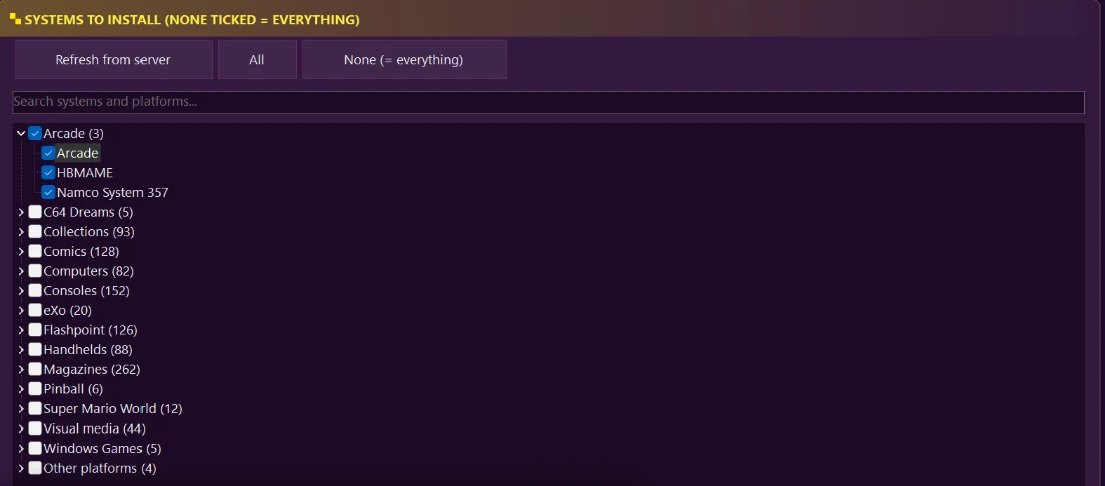
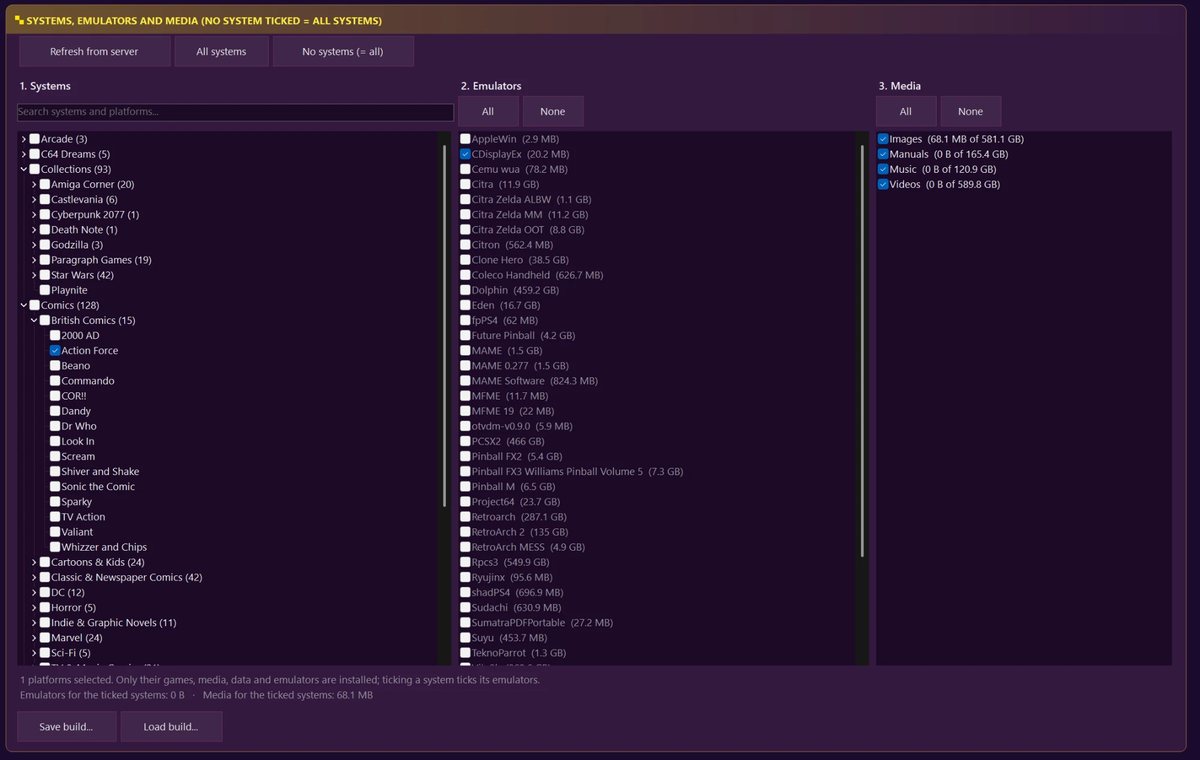
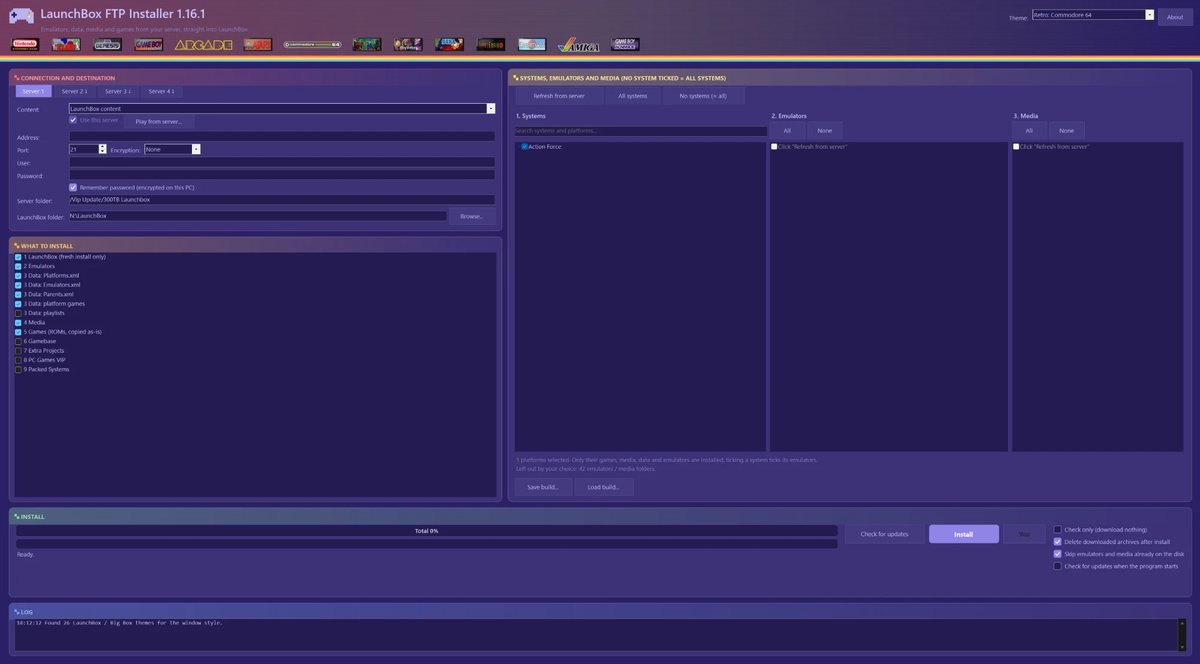
Choose exactly what you want. The systems tree is the same one LaunchBox shows: tick the whole Nintendo group or just Nintendo 64. Emulators and media (images, videos, manuals, music) are picked next to it, each with its size shown before anything is downloaded.
Smart merge, no duplicates. New platforms and games are merged into your existing LaunchBox. Your own entries, favourites, play counts and emulator settings stay, and the original files are backed up first.
Resume and skip. A stopped download continues where it ended. What you already have on the disk is not downloaded again.
Updates in one click. “Check for updates” shows what is new on the servers and installs it for you.
Check only. See what would be downloaded and how much space it needs, without changing anything.
Save your build. Keep your selection as a small file. Install it again later or share it with a friend.
Encrypted connection. Your login and file lists travel over FTPS (TLS). Nothing crosses the network in the clear.
Repair in one click. Deleted something by mistake? Repair fetches again whatever was installed but is missing from your disk.
Play from the cloud
Short on disk space? You do not have to download the games to your computer at all. Click Play from server and the server shows up on your PC as a drive letter. LaunchBox starts the games straight from the cloud. Only LaunchBox, emulators and media stay on your PC; a game is fetched the first time you start it. This needs the free WinFsp driver, and the program shows you where to get it.
See it in action
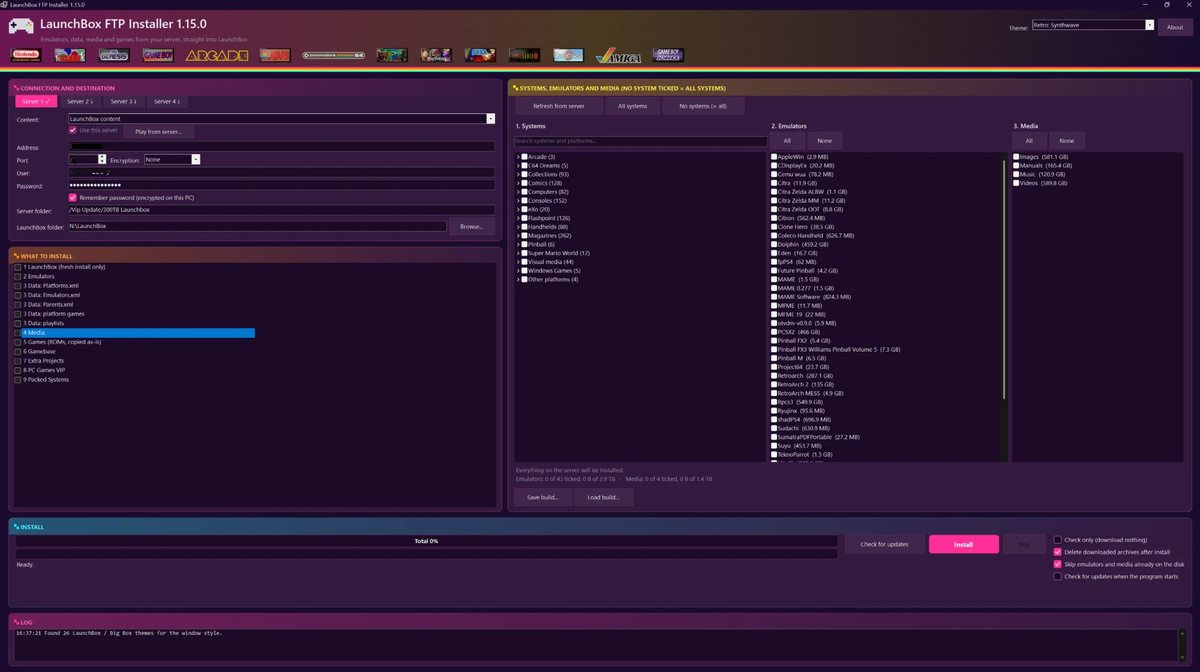
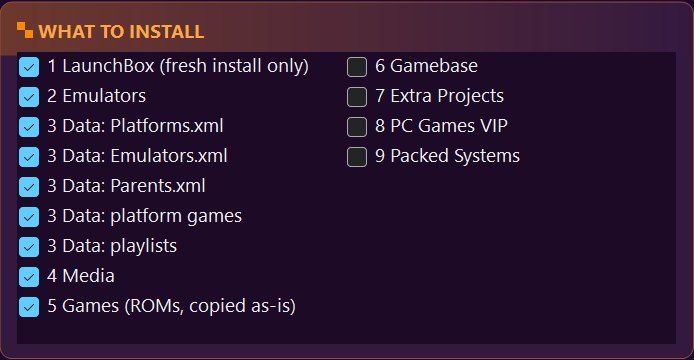
Pick your systems: tick a whole group like Arcade or a single platform.Choose emulators and media: every item shows its size before you download.Decide what gets installed: LaunchBox itself, emulators, data, media and games.Check for updates, try Check only first, and skip what is already on your disk.Pick your style: retro window themes included (NES, SNES, Game Boy, Sega Genesis, Commodore 64, Atari, Synthwave) or the look of your own Big Box theme.Retro: Commodore 64.
How it works
Unzip and run. Nothing else to install, 7-Zip is included.
Enter your own FTP login. The password can be remembered, encrypted for your Windows account only.
Choose your LaunchBox folder and tick the systems you want. A new folder gets a fresh LaunchBox.
Close LaunchBox and Big Box, click Install. Come back later to add more systems the same way.
Where to get it
Log in to the LaunchBox FTP server with your subscriber login, the same one you use for the build. Open the folder LaunchBox FTP Installer, download the zip and unzip it anywhere on your PC. That is all: no installation, no extra downloads. Free for every subscriber, Windows only.
Beta · work in progress. LaunchBox FTP Installer is still in beta, so not everything may work perfectly yet. We keep developing and improving it, and new versions will follow. Found a bug or have an idea? Tell us on Discord.
Not a subscriber yet? 500 TB of ready-made LaunchBox, Hyperspin, CoinOPS and Retrobat builds, 2,000 systems and 700,000+ titles: see how to get started.